How to Upload Website Files using cPanel

  • Log into cPanel

cPanelLogin

  • Navigate to File Manager under the Files tab
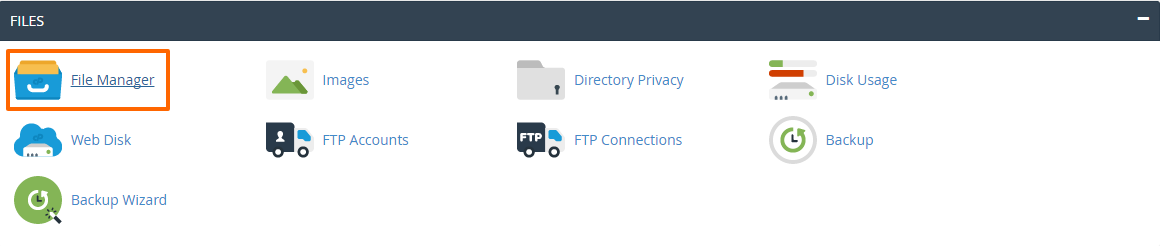
File Manager

  • In the window that pops up, select Home Directory, check the box next to Show Hiden Files and click Go
  • Click on public_html folder on d Left Hand Side of the page
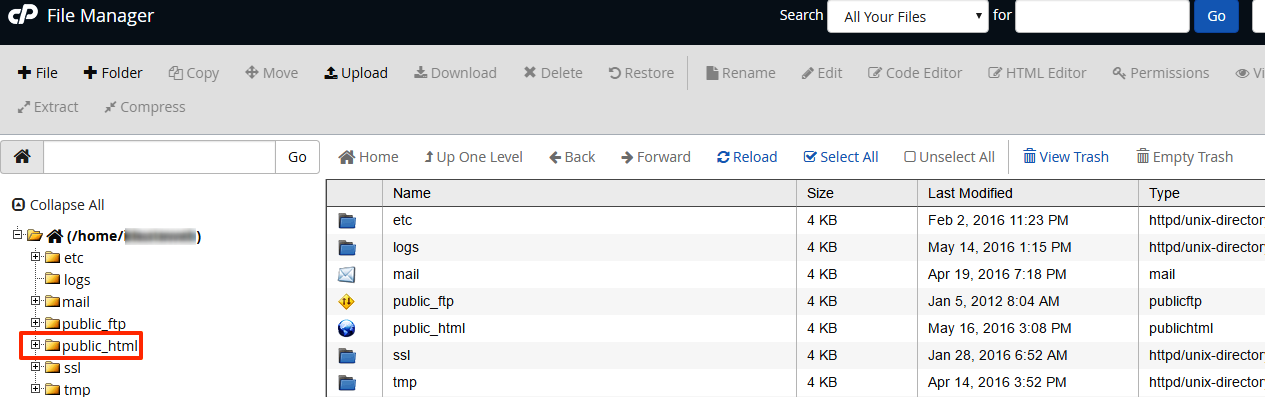
public_html


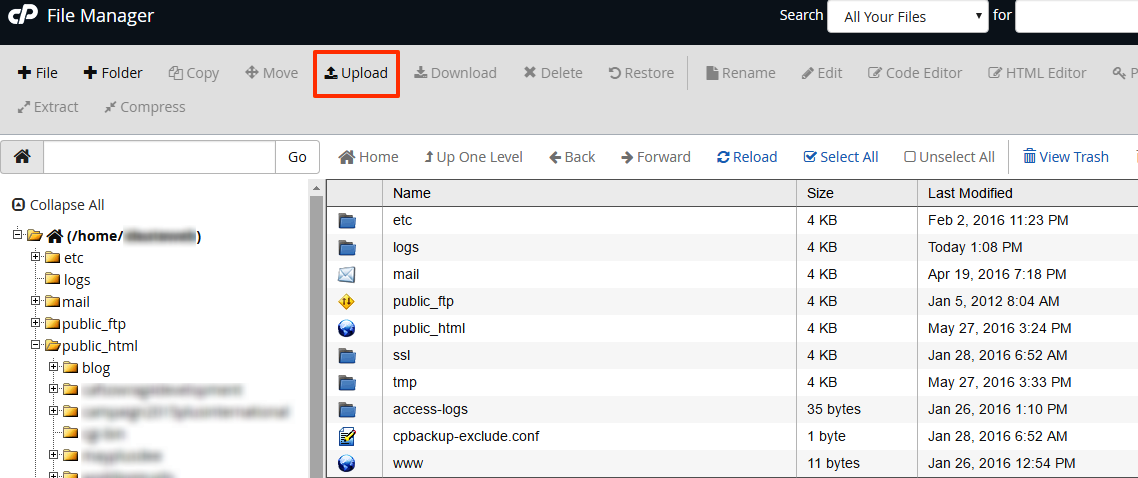
  • Click Upload at the top of the screen

Upload

  • Click Choose File and then navigate to where the website files are located on the computer
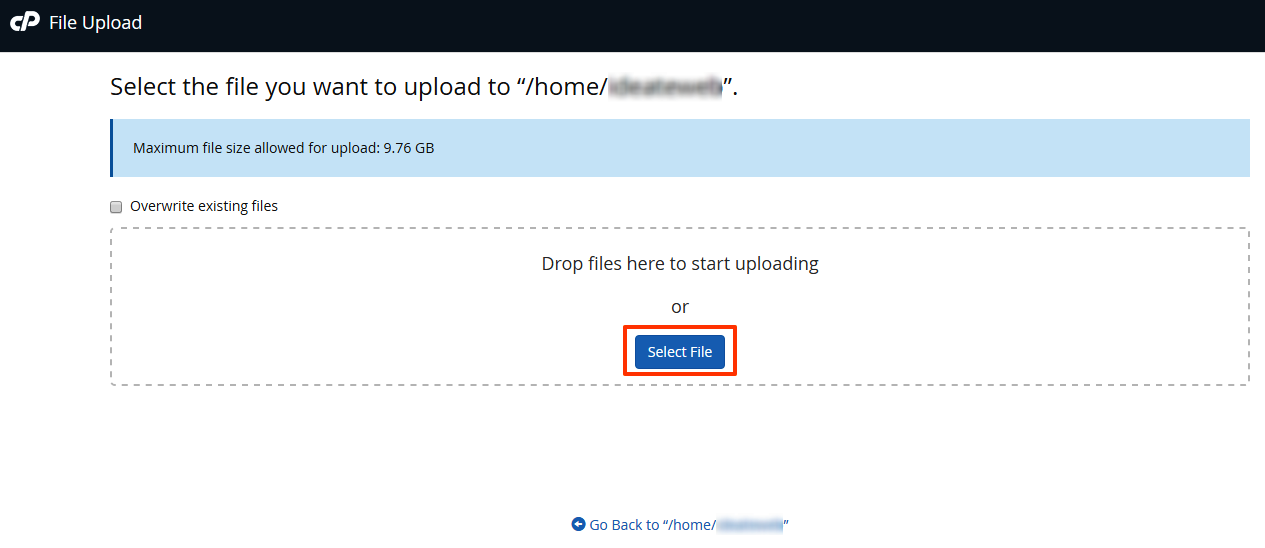
Choose File

  • Once upload is complete, click Choose File again to upload the next file

Note that you can only upload files and not folders

  • 5 Users Found This Useful
Was this answer helpful?

Related Articles

How to Change your cPanel Password in cPanel

Often you may want to change your cPanel password for one or more reasons. It is always...

How to Enable Hotlink Protection

To enable/disable hot link protection, follow these simple steps: Log in to cPanel...

How to Change cPanel Password in the Core

Often, you may want to change your cPanel password. You can do this from your core panel. To...

406 Not Acceptable Error

A 406 Not Acceptable Error is indicating that the script you are trying to run is triggering...

How to Disable APC Cache via .htaccess

You can disable APC Caching for your domain via .htaccess with the following steps: Login to...