Windows Server - First Login Errors

If you get the following error message the first time you access Windows after installation, your client has been negotiating with the server for network-level authentication. However, network-level authentication is executed before a remote desktop session has even been created.

That means you cannot change the password you are forced to use during the first login.

Follow these steps:

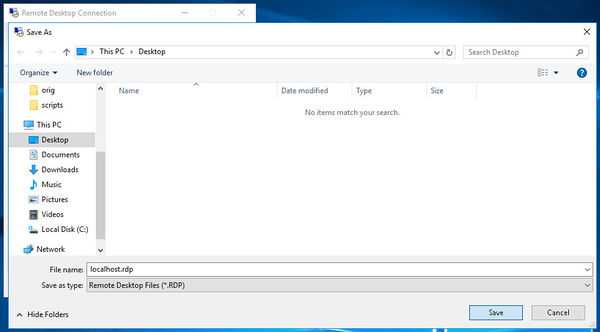
  • First, create an RDP file (see attached a screenshot on how you can save it)
  • Rightclick the .rdp file and edit in Notepad or your favorite code editor
  • Add the following code at the end of the file

username:s:Administrator
authentication level:i:2
nablecredsspsupport:i:0
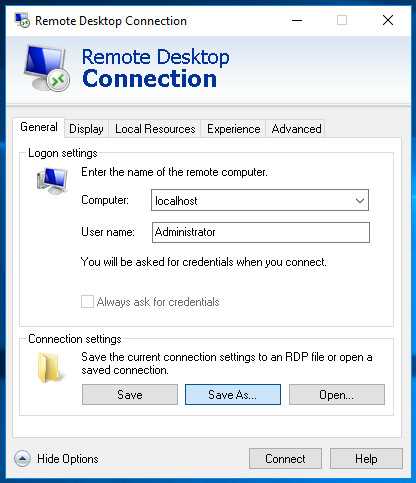


You can now double-click the .rdp file to launch a connection.

  • 0 Users Found This Useful
Was this answer helpful?

Related Articles

How to Change your cPanel Password in cPanel

Often you may want to change your cPanel password for one or more reasons. It is always...

How to Enable Hotlink Protection

To enable/disable hot link protection, follow these simple steps: Log in to cPanel...

How to Change cPanel Password in the Core

Often, you may want to change your cPanel password. You can do this from your core panel. To...

406 Not Acceptable Error

A 406 Not Acceptable Error is indicating that the script you are trying to run is triggering...

How to Disable APC Cache via .htaccess

You can disable APC Caching for your domain via .htaccess with the following steps: Login to...