How to Change your cPanel Password in cPanel

Often you may want to change your cPanel password for one or more reasons. It is always recommended you change your password as often as possible, like once every month in order to keep your cpanel account safe from hackers. Ensure your passwords are set to alpha-numeric characters and symbols for maximum security. To change your password, follow these steps:

  • Log in to the cPanel with the existing username and password

cPanel Login


  • Click Password & Security under the Preferences tab

Password & Security

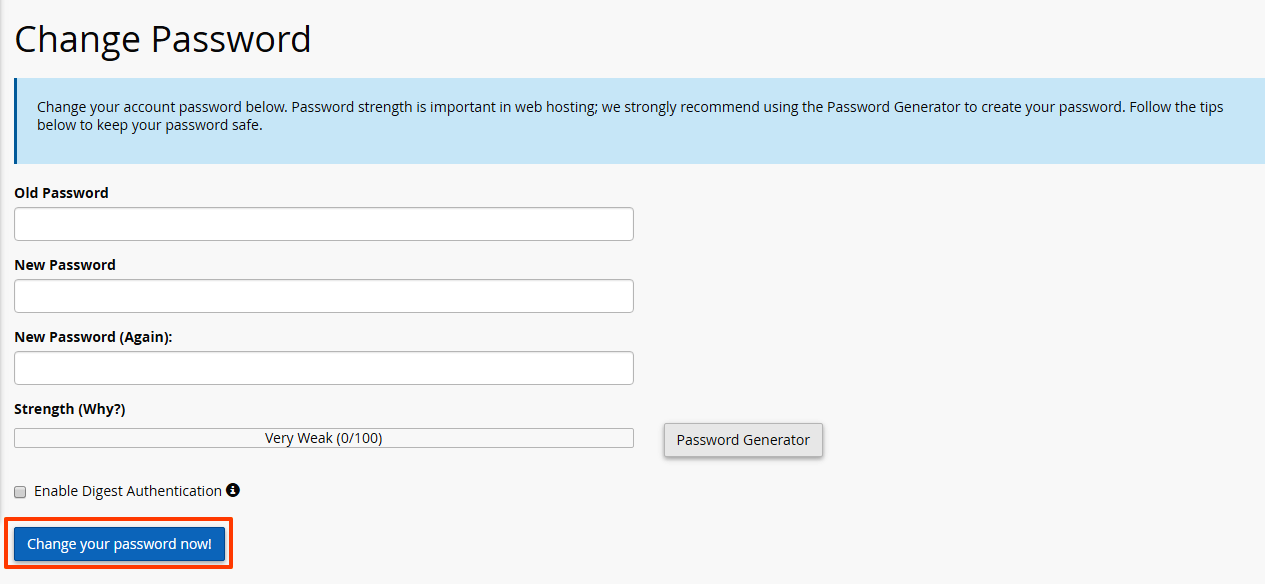
  • Type in your Old Password and a New Password twice. Ensure it contains alphanumeric characters
  • Click 'Change your password now'
Passwords

Your password will be changed and you will be prompted to login again. This time with your new password.

  • 12 Users Found This Useful
Was this answer helpful?

Related Articles

How to Enable Hotlink Protection

To enable/disable hot link protection, follow these simple steps: Log in to cPanel...

How to Change cPanel Password in the Core

Often, you may want to change your cPanel password. You can do this from your core panel. To...

406 Not Acceptable Error

A 406 Not Acceptable Error is indicating that the script you are trying to run is triggering...

How to Disable APC Cache via .htaccess

You can disable APC Caching for your domain via .htaccess with the following steps: Login to...

How to Backup Entire Site in cPanel

You can backup your entire site including databases, e-mails, settings etc using the cPanel...